
Review copy provided by Ubisoft Spain.
Introduction
Assassin’s Creed Black Flag Resynced is a remake of the original game released by Ubisoft in 2013. It was first game in the franchise that allowed players to travel around in an open world, and introduced the possibility of sailing in your own ship as a pirate. The sense of freedom that this brought was refreshing and it became a favorite of many, including myself. But as a low vision gamer it also had important barriers, that thanks to making use of the game’s mini-map, eagle vision and some ingenuity, they were manageable.
Ubisoft recently detailed the accessibility features in their Accessibility Spotlight. Now these dedicated accessibility features and gameplay changes should allow for a better experience, but is this really the case? Keep reading and you will know, for we set sail to discover it. This is my Low Vision Accessibility review.
Settings
Initial Setup
Upon launching Assassin’s Creed Black Flag Resynced for the very first time, we can adjust some settings before jumping into the game. Although we can adjust most things, not everything is here, so I recommend going through the most basic features and adjusting the rest later. When the first screen appears, we hear “Press V to enable narration”. This makes customizing your game a breeze from the start.
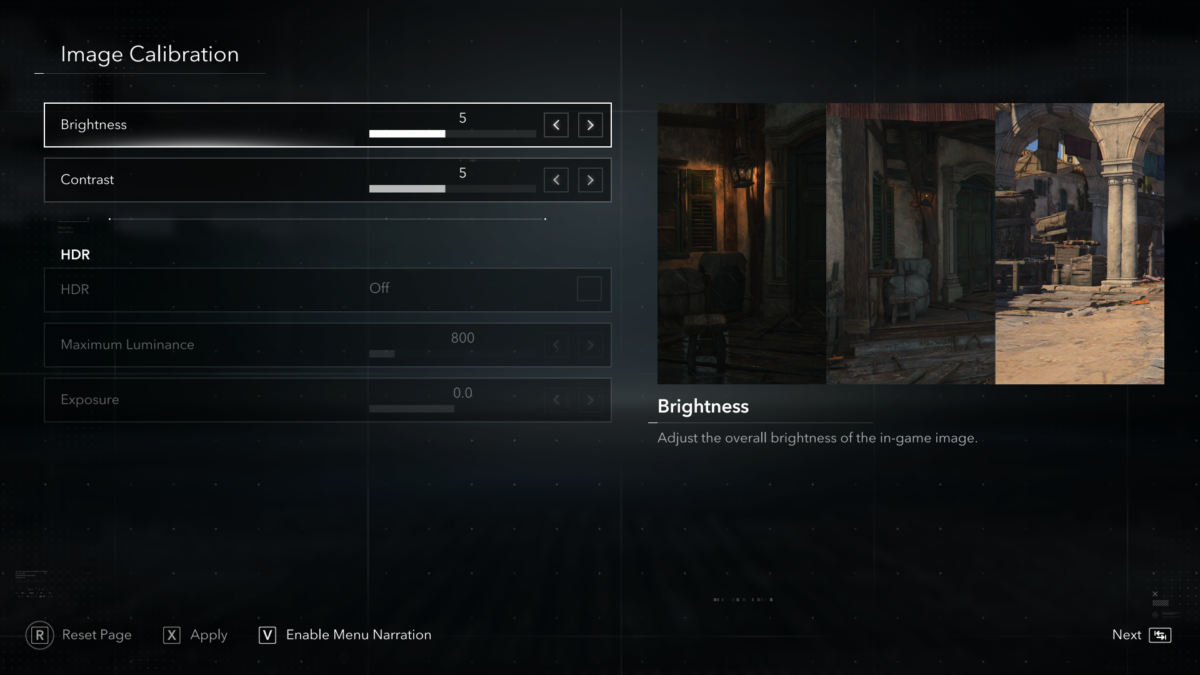
In the first screen, we can adjust Brightness, Contrast and HDR if you’re using it. I want to point out the importance of both Brightness and Contrast in Assassin’s Creed Shadows, and that might be helpful in this one as well. Shadows, for me, had extremely low contrast, and I barely can see anything, but by changing these two sliders I made the game’s contrast perfect for my needs. By setting Brightness to 10 and contrast to 8, I completely changed the overall contrast, making everything easy to see. I don’t think that in Black Flag Resynced you’ll need to get that far, but I personally use Brightness at 7 and Contrast at 6.
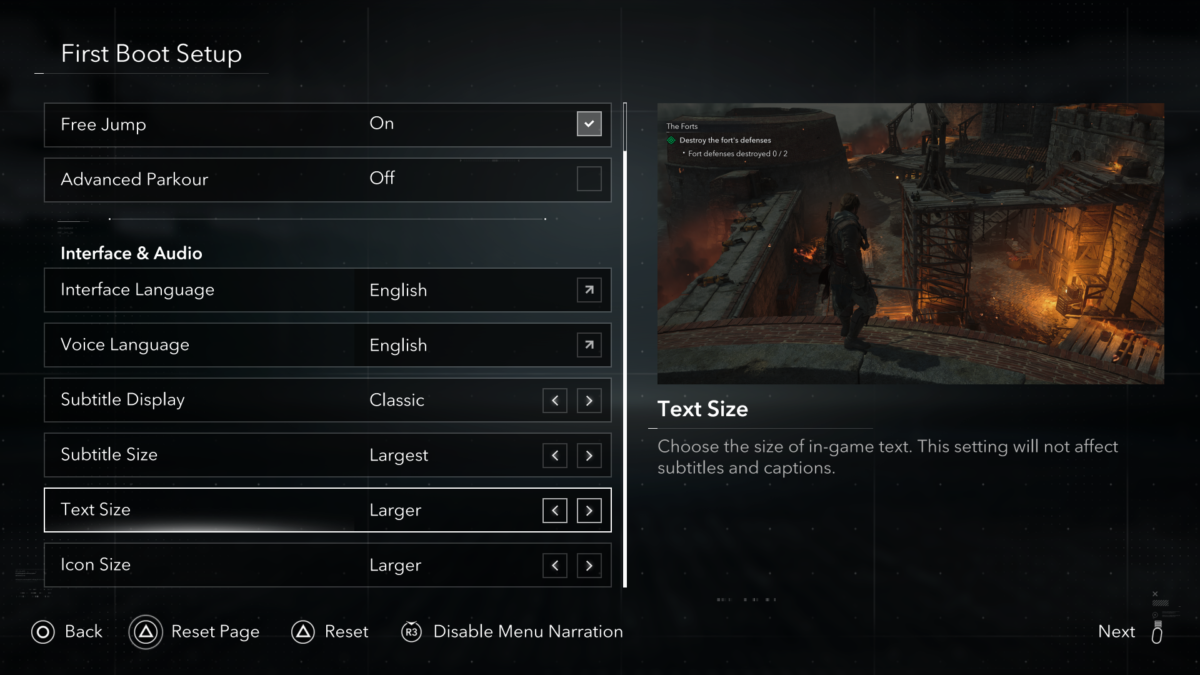
In the second screen we can customize the user interface, increasing text size, subtitle size, and icon size. We can also enable Free Jump to automatically jump, set the interface and audio’s language and more. I’ll enumerate the important features in the next section for the full settings.
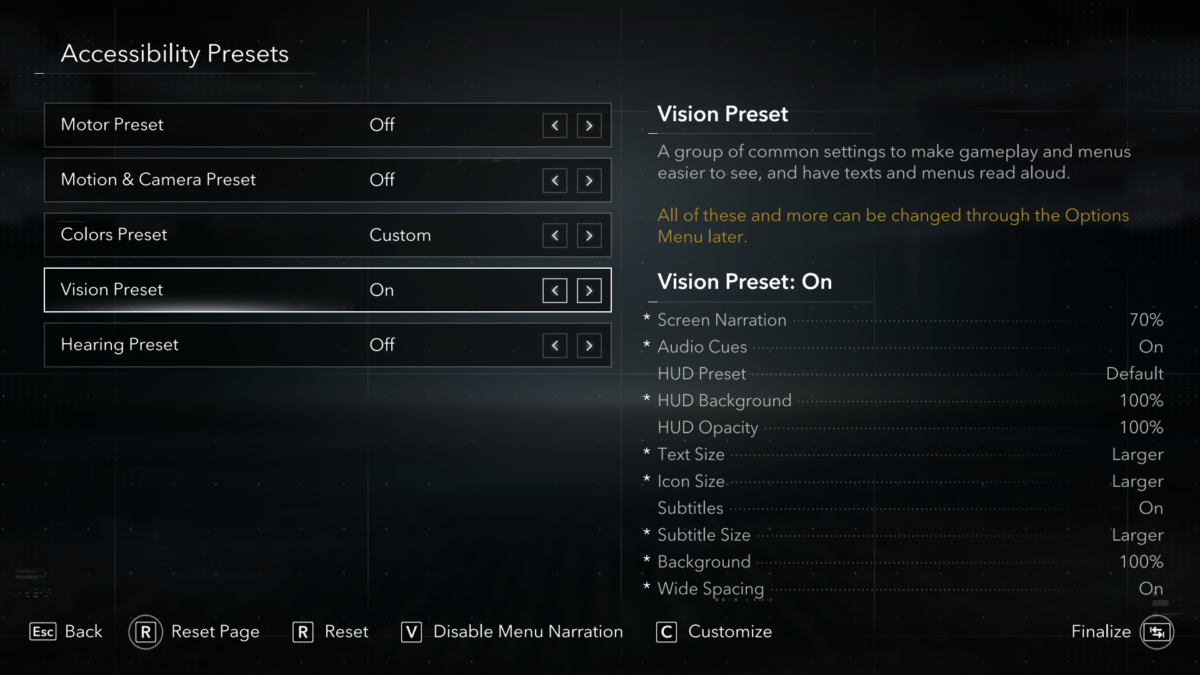
The following screen is dedicated to Accessibility, but not every option is there so, again, I’ll be brief for now. In this menu we have Motor, Motion, Colors, Visual and Hearing Presets. You can decide rather to turn them on, enabling all the features, or press the Square button to adjust them independently. If you decide to customize your experience here, make sure you explore every preset, because what you might need can be in different categories than the one you’re looking for. Not everything useful for low vision is exclusively under the Visual Preset. Again, thanks to the Menu Narration this process is easy.
Options
As usual, I’ll only mention what I believe are the important settings for low vision. There are other accessibility features in the game, but I will focus on everything the game has to offer for low vision / blind players.
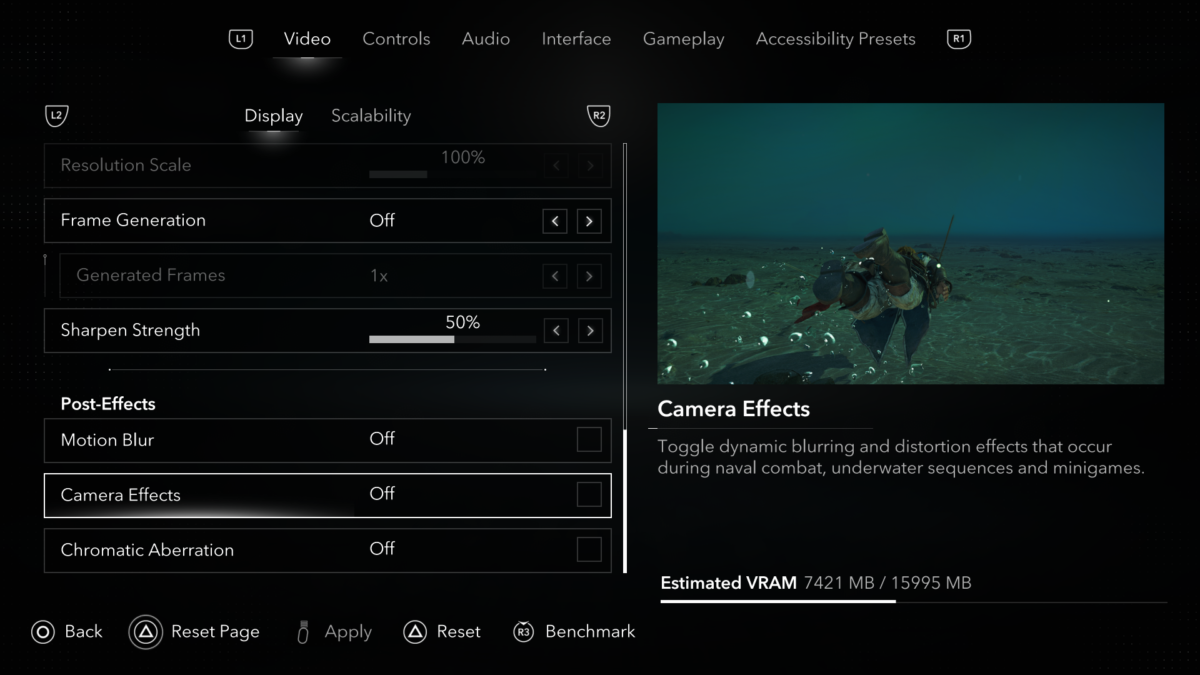
In the Video settings I want to mention three options: Motion Blur, Camera Effects and Chromatic Aberration. I personally disable all these post effects because they generally only make things harder to see.
Moving to Audio, we have a good number of very helpful options that make a huge difference in my experience. On the top we have individual volume sliders for Master, Voice, Music, Foley FX, Gameplay, Menu, Ambient and Sea Shanties. Personally, I use Music volume set to 60% and Menu volume at 30%. It’s important to lower these to hear better other cues during gameplay.
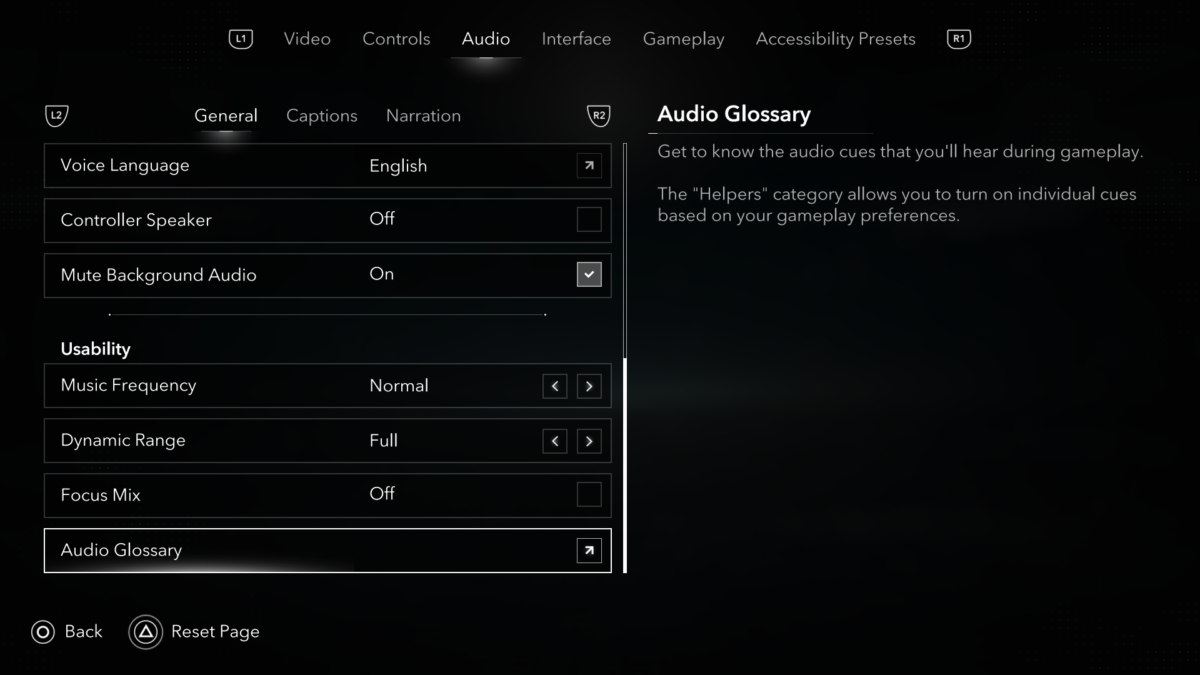
Then, there is Music frequency presets which I leave at Normal, and Dynamic Range. Next we have this Focus Mix option that when enabled, prioritizes important audio cues over everything else. In practice, everything is still loud enough, but it enhances the audio cues / helpers we can check next in the Audio Glossary. The Audio Glossary sub-menu, has two tabs. General that is always on by default for everyone, and Helpers where you can manually enable or disable different important audio cues. In the General category you have cues for critical health, low oxygen, eagle vision on and off, ability ready, ship weapons ready, spy glass on and off, sails raised or lowered etc. There are 26 different audio cues in this category, and you can listen to learn them at any time.
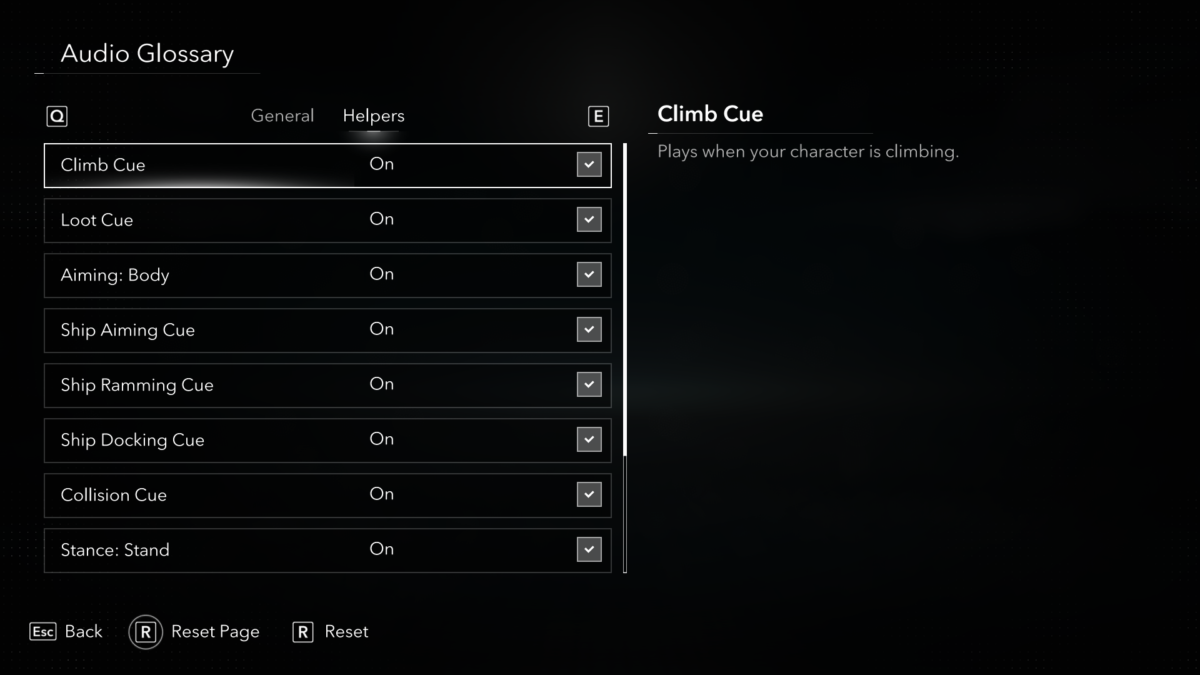
Then we have the Helpers category which are cues specifically introduced to assist low vision / blind players. Here we can activate or disable 11 different audio cues. Those cues are: Climb, Loot, Aiming Body, Ship Aiming Cue, Ship Ramming, Ship Docking, Collision, Stance – Stand, Stance – Crouch, Take the Wheel and Release the Wheel. These cues are extremely important if you rely on audio a lot. I adjusted what cues I wanted to use based on my needs, and turned off things like Climbing, Standing and Collision as I don’t need them.
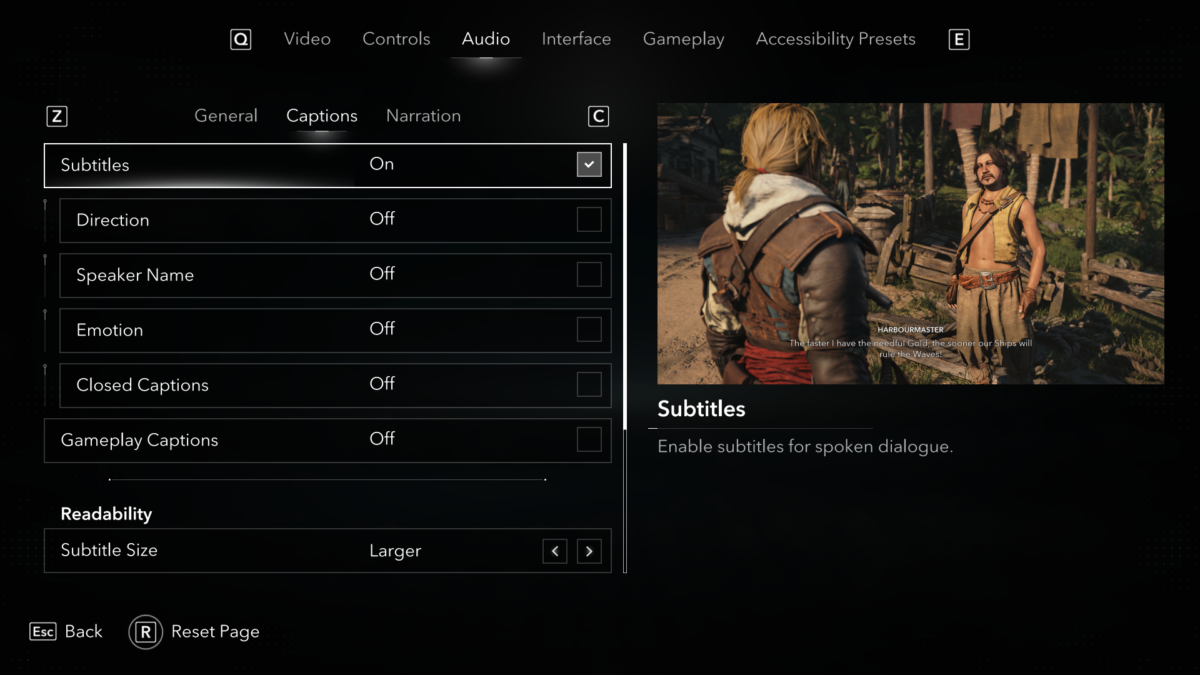
Going back to the Audio menu, and moving to the Captions tab, we can adjust how subtitles are presented. I’m not sure if these subtitles are large enough for most low vision players, but I will mention the settings we have anyway. I can never read them, so I don’t know.
We can enable or disable subtitles, choose rather to have Directions subtitles, have or not the Speaker names, set if you want to show the emotion that a line was said, and enable or disable Closed Captions for non-verbal sounds and Gameplay Captions to show subtitles for important gameplay sounds. Then we can adjust Subtitle Size from Small, Medium and Larger, set if you want to have a background or not, set its Opacity, its Color, choose the subtitles Text Color and enable or disable the Wide Spacing that helps making the text easier to read for some people. As you can notice, there is a lot of room for customization.
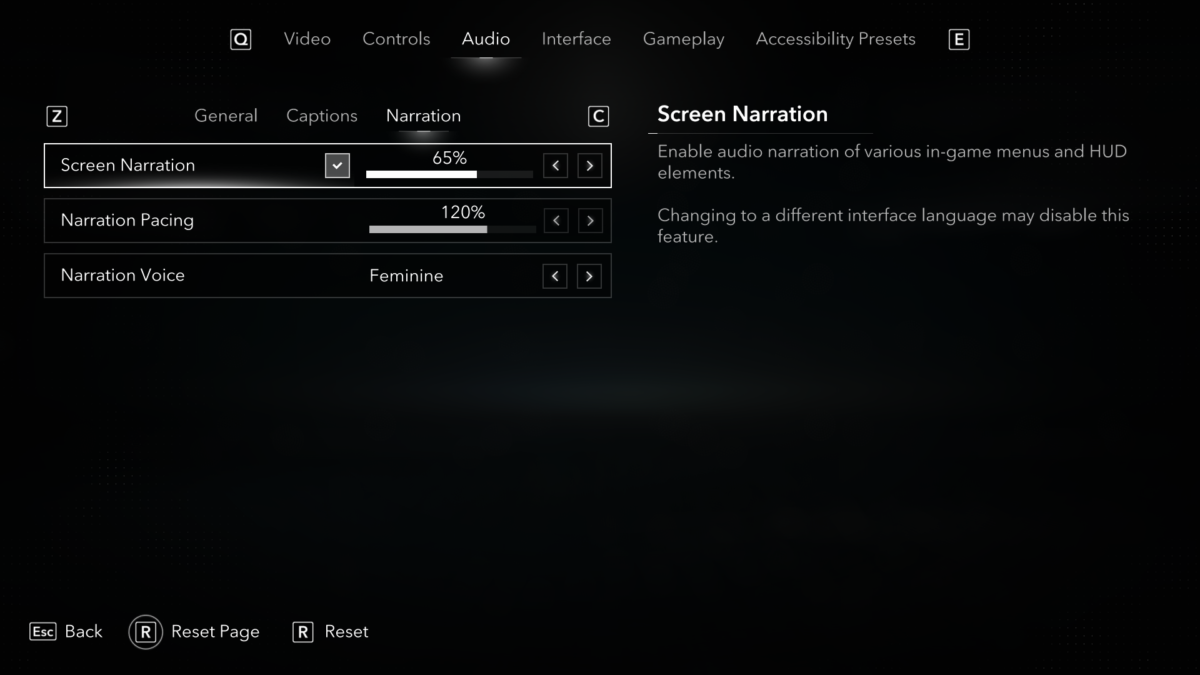
The following tab is dedicated to the Narration and here we can adjust the Screen Narration volume, Pacing and Voice from Feminine or Masculine.
Under the Interface menu we have Color Preset (Colorblind) where we can choose from Default, Red-Green Blindness and Blue-Yellow Blindness. We can also adjust the overall Text and Icon Size from Smaller, Medium and Larger. You can also enable a persistent Camera Dot and set its color
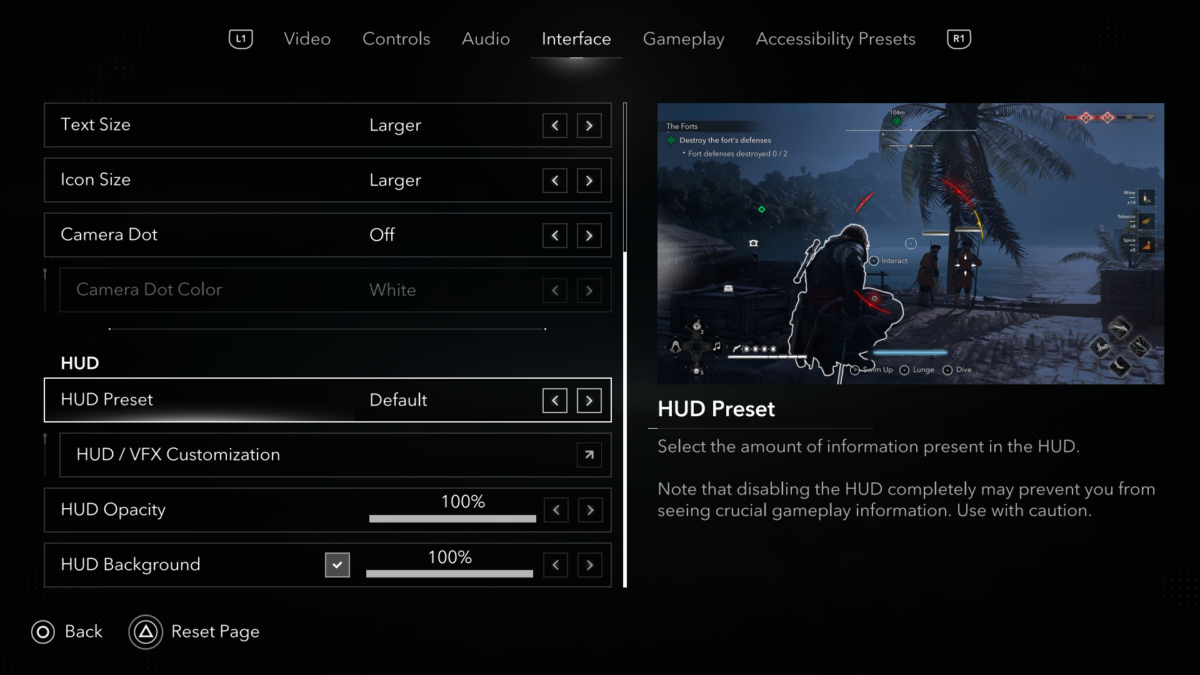
Next, there are some interesting options that you might want to make some adjustments. The HUD Preset is to show or Hide different information, and I recommend using it at Default and then adjust it based on your needs. Whatever you choose to show / hide in HUD, will directly affect what the Screen Narration reads out loud, so keep that in mind..
Under the HUD / VFX Customization you can manually add or remove different HUD elements and visual effects. Also, you can adjust if you want to have a background and set its opacity. I personally use it at 100% opacity to add contrast and help me with the compass visibility and some on-screen text.
But before we move on to the next category, I must mention one option under the HUD / VFX that you should be aware of, the Controller Reminders. If you use the Screen Reader feature and use the Path feature to guide you towards your markers and objectives, and you’re not on ground jumping around, the Screen Narration will bug out. Every time you move it will repeat “hold D-Pad up to disable path” constantly. To get rid of this bug, just disable the controller reminders after you’re familiar with the controls. I am sure this will be fixed but in the meantime it is annoying.
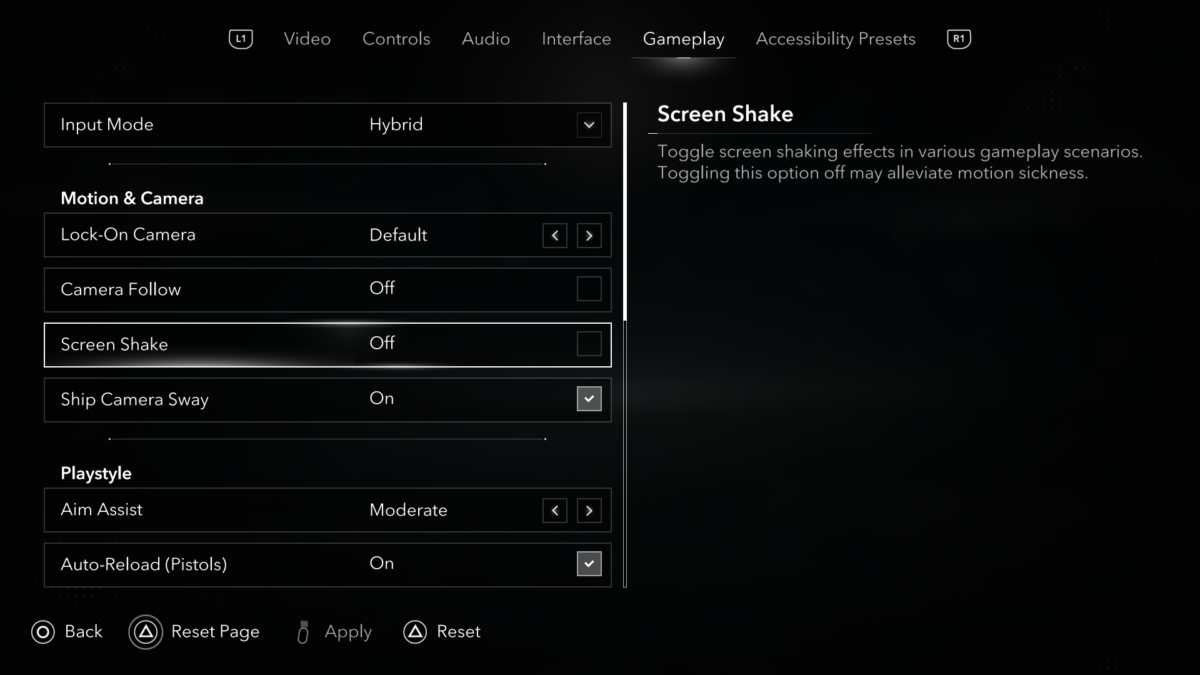
In the Gameplay menu we have Input Mode. On PC this is very important if you want to use Windows’ Screen Magnifier. Setting this to Controller, you can freely move your cursor in the map without having to worry about not being able to read the floating text that appears when hovering over icons. We can adjust the Camera Lock between Default (manual) or Automatic. There also options to enable or disable Camera Shake and Ship Camera Sway. We have Aiming Assists that can be set to Off, Light, Moderate and Full, enable or disable the Auto-Reload.
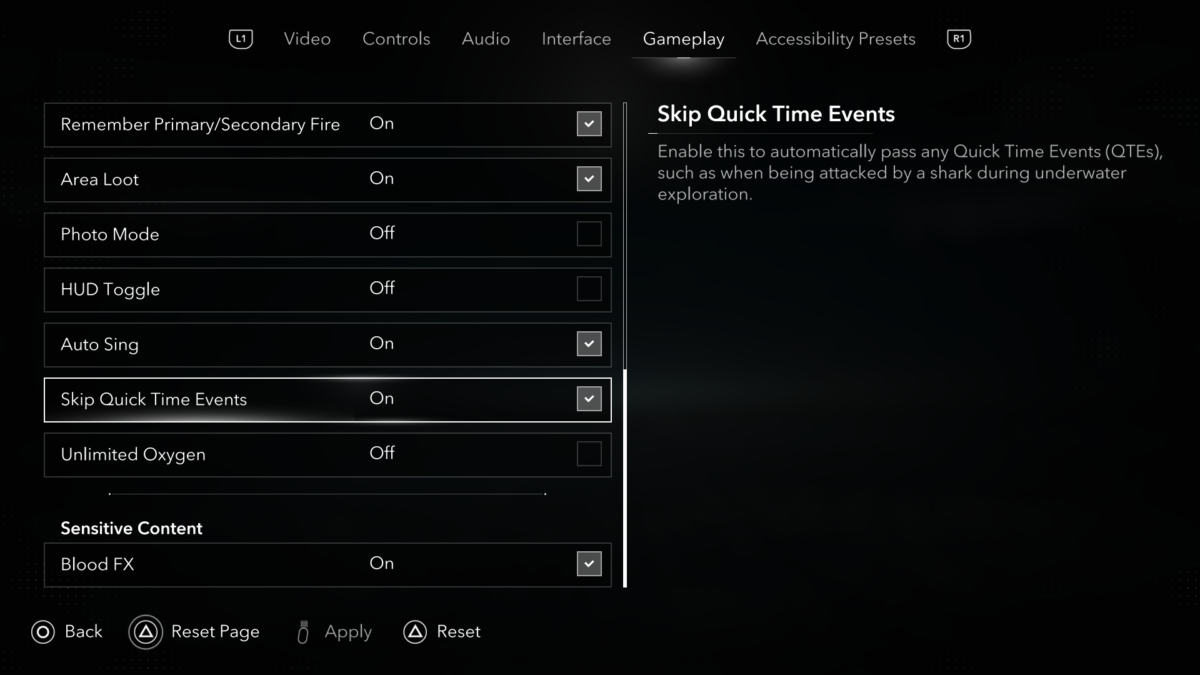
There is this option called Remember Primary / Secondary Fire that I like a lot. This is important because Naval Combat is very challenging and it’s good to have this enabled, so you are ready to use your favorite weapons when you need it the most. You can also enable Area loot to help you loot easily with one button press. Another important feature here is Enable or disable Quick Time Events. This is so important to me. I cannot see the visual prompts, so having this is simply great. You can also use the Unlimited Oxygen feature so you can explore under water with less pressure, as it can be difficult.
Finally, under the Accessibility menu, we can find only one option that isn’t in the other menus. In Visual Accessibility, we can enable or disable the Audio Cues. It’s weird why this option isn’t in the Audio menu, but we can find it here. This menu includes everything else that I’ve mentioned before, but it misses a few, so I recommend customizing your game in general options.
Gameplay
The game starts with Edward Kenway and his crew in the middle of the sea battling other ships. This start was as intense and as confusing as it was when I first played this game years ago. It’s dark, weather is severe, with thunder, rain, wind, big waves and tons of explosions making things hard to see and understand. Thankfully, the game doesn’t punish you too much in this part, so completing this first barrier was not too bad. This part is easier than I thought, but since I was initially overwhelmed by everything that was happening at the same time, I didn’t realize how good the compass is due to its size and contrast.
Once in control of Edward Kenway for the first time, we must chase a guy and catch him. Since this is a remake, it’s inevitable that comparisons are made, and the differences start to show up right when the game starts. In the original game, if you fall behind, the mission fails, and in this remake that doesn’t happen through the entire game which is great. One of the few things I hated about the original was failing missions and starting over. That means that now I can take my time to get to him, make mistakes, fix them, and get to my objective.
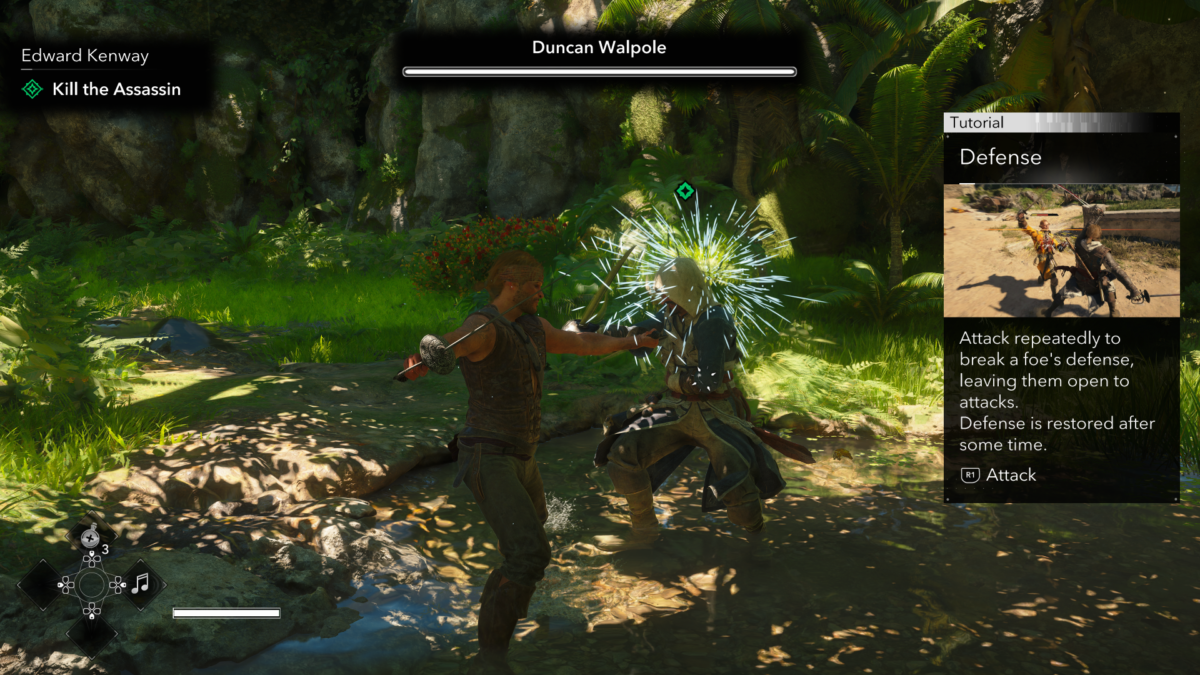
Here we notice other great improvements like the tutorials. There are some that freeze the game, while others are shown in motion. The huge difference is that now, the Screen Narration reads them out loud. Press square to hide in the bushes, press triangle to takedown, press triangle to pick up, hold to open and so on. It’s pretty good, not only the prompt being read but the visual prompt with its background as well.
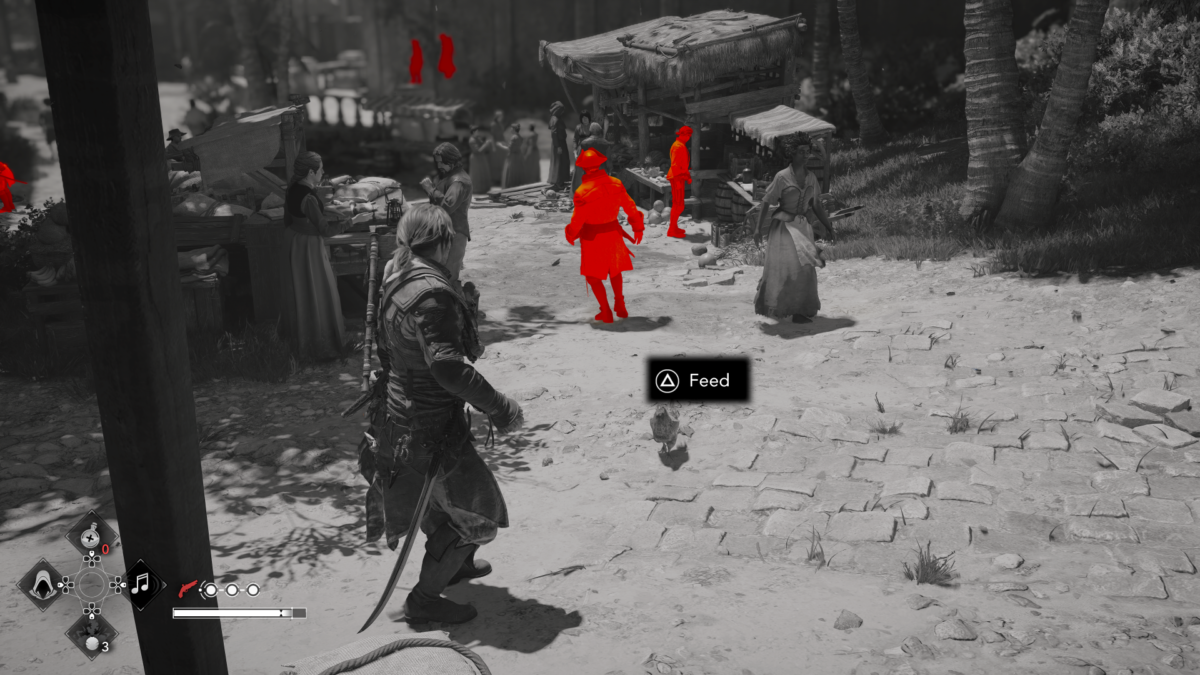
Going in stealth mode and killing enemies is always so fun when we have a feature like the eagle vision that works like a high contrast mode. By holding R3 on the Playstation controller, the screens darkens and enemies and objects are highlighted. Enemies get this intense red shade color that makes them very easy to see.
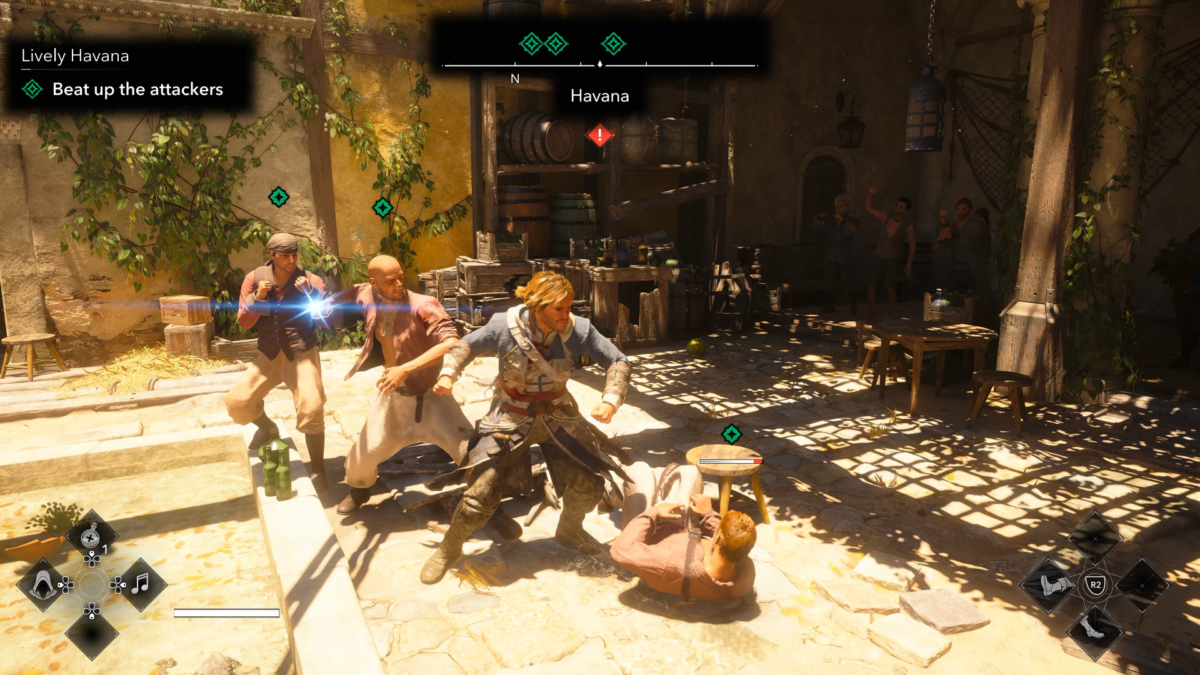
But when things go south, we must face them eye to eye in combat. There are some visual cues that help in combat, white and red glimmers. White to parry and red to dodge. But since the initial fights are always very forgiving, I initially didn’t pay much attention to those but later they make a big difference.
Then I got to sail the ship, and my friends, is hard when you play this game for the first time, or you play it 13 years later. In the original game, I zoomed in and turned the mini-map as it covered my entire screen, and with that, I was able to navigate between rocks easily. But in the remake, you don’t have a mini-map, so I had to hit a few rocks before leaving the bay. I have to admit that I struggled more than thought I would, but at least for me, it got much better as I got used to everything.
Visuals
Let’s start with what is probably the most exciting thing for low vision players, the eagle vision, and I have strong opinions about it. At the end of the day, it serves its purpose, but for me, this feature was better in the original game. The great difference is in the yellow shader that isn’t in this game. In missions where you must follow enemies, to listen to their conversations or assassinate them, they look the same as any other enemy in the remake, while in the original, they were shaded as yellow. Yes, there is an icon on top of their heads, but it’s much harder to see. That distinction in the first game is the type of thing that transforms experiences, turning difficult tasks into normal tasks. That could also be a thing for the ship’s captain and enemies holding keys. I basically have to kill everyone before getting to the ones I need to kill. Not because I want to, but because I can’t distinguish them.
The same applies to loot. They are highlighted, but I was expecting the visual effect to be less transparent. That was quite disappointing, but don’t think that this feature isn’t good enough. It does its job very well, especially highlighting places to hide, doors that require keys, enemies, animals etc.
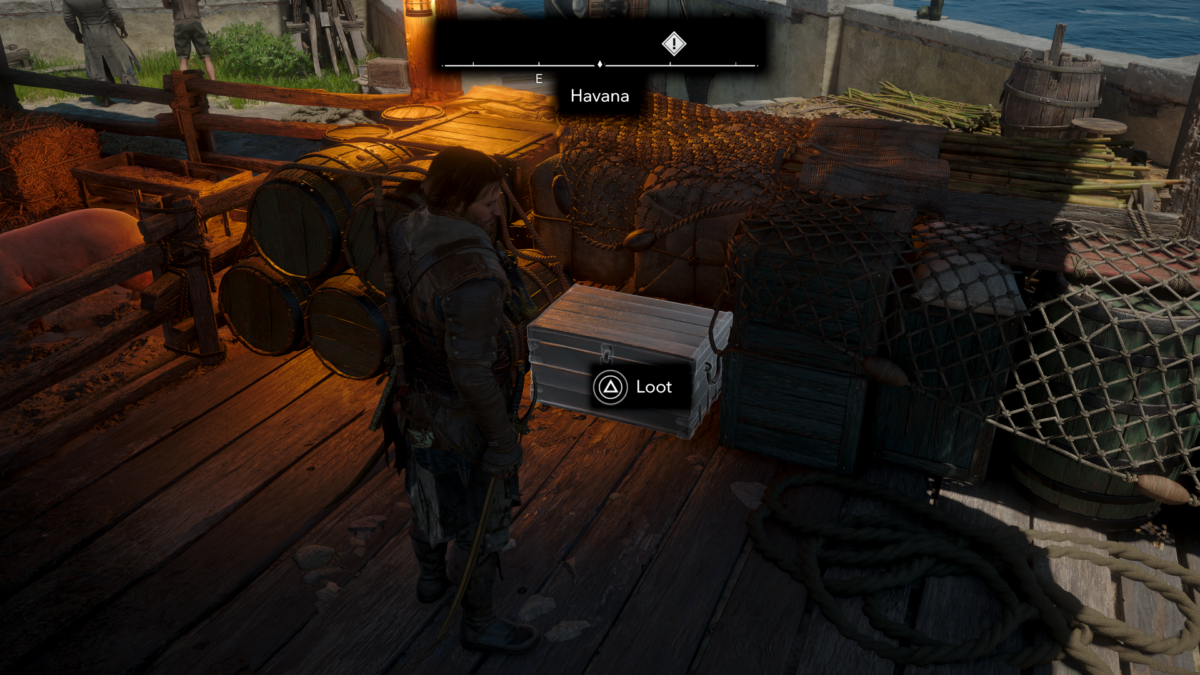
In fact, the most important visual cue for me are the prompts when we are near items and interactions. There isn’t much being shown while exploring other than using eagle vision highlights and the visual prompts, which is great if you set the Text and Icon sizes to Larger and enable the background. No visual clutter at all.
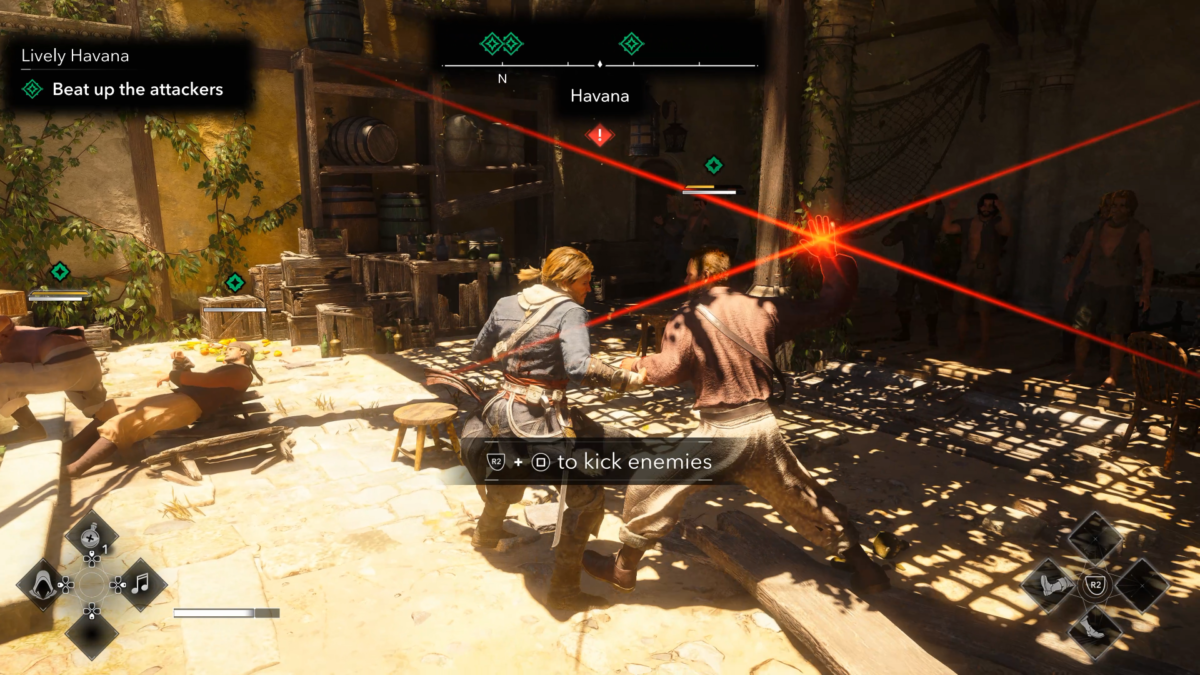
During combat, you have the white and red glimmers that I’ve mentioned earlier, representing parry and dodge. To be fair, it’s hard to interpreter those two colors fast enough, because when it blinks, they are already attacking, giving me no time to react. So my solution is always dodge which works well. There is also an effect that occurs when a parry is successful or not.
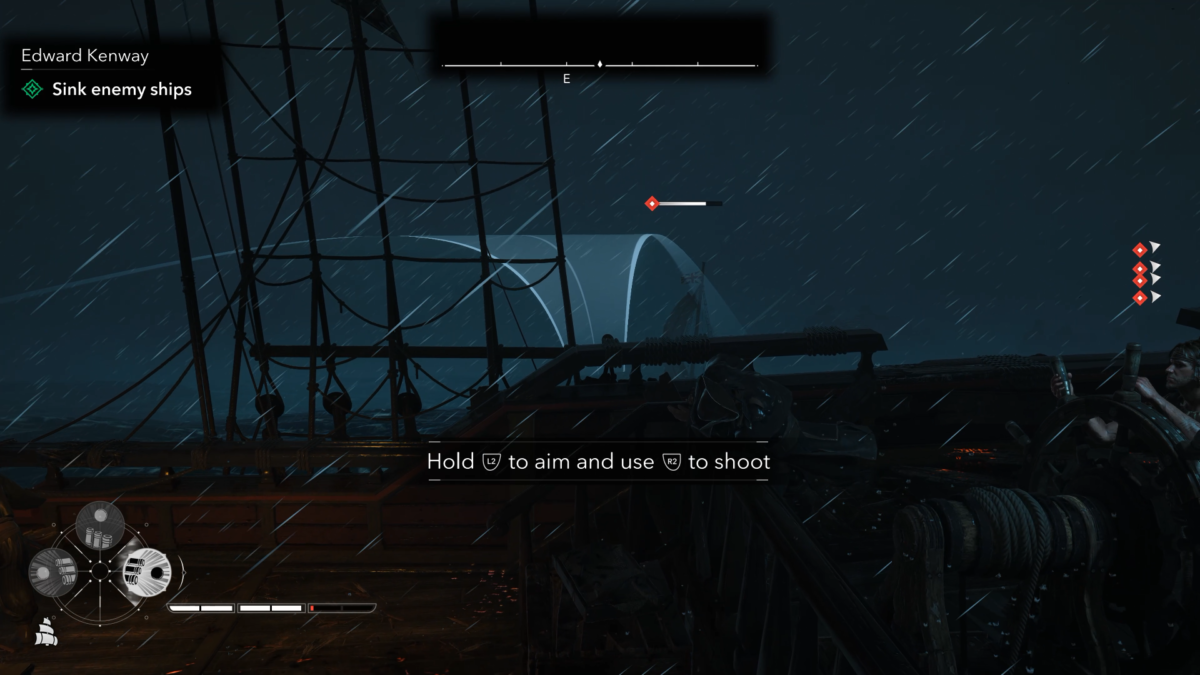
In Naval battles things are a bit harder. We have an arc showing the range of our weapons and they have good contrast, but the issue is that during the chaos, it’s hard to see if I’m aiming at an enemy ship. I wish that when I was aiming that arc on top of an enemy ship, it would change color, like the color change that happens when using the mortar. The area of effect changes color helping so much to know if you will hit your target. That alone would make Naval combat much easier and fair. As it is right now, it’s very hard, especially when the weather isn’t helping. When a ship is ready to be looted, a visual area appears in the water indicating the range you must be to invade their ship. The same for docking and fishing. Those visual cues are incredibly helpful. After killing the enemy’s captain, there is this bright camera effect letting you know that the fight is over.
Screen Narration
Assassins Creed Black Flag Resynced has an incredible Screen Reader, and it immensely impacts the experience. The Visual category seems to not have much, but most cues I need come from the screen narration. It basically provides all the information you need, prompts to kill enemies, prompts to collect items, when interactions are close enough, tells you if you need something to open a locked door, prompt to dock, to talk, what and how much you collected etc. And the coolest part is that it informs about nearby activities. If a pirate needs to be rescued, it reads out loud. Basically, nothing is missing, at least that I noticed.
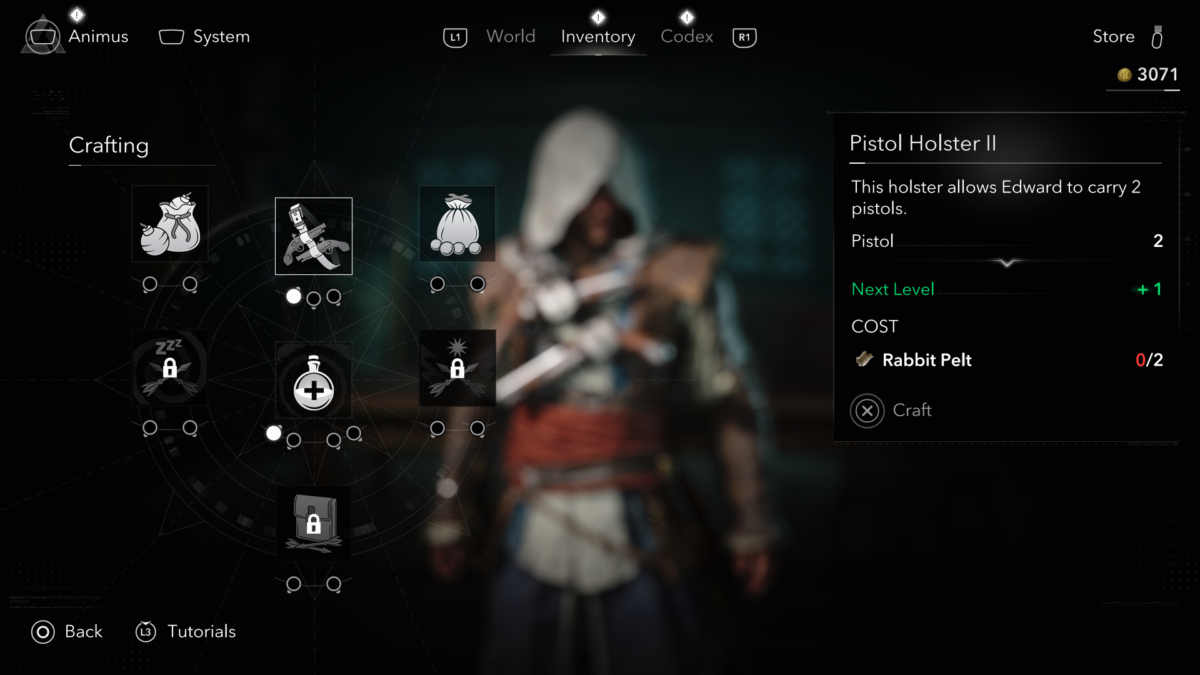
When moving the camera towards an objective, quest giver or hand mark, it also reads them out loud along with the distance. It also reads everything in map, inventory, shops, dialogue etc. When entering the map, the narration will always read things you might not need at a certain moment, so to interrupt it, press L3 in the Playstation controller and go back once. This way you can make it read what you need immediately.
Whenever the game transits from a menu to gameplay, narration will read the quest objective again. In case you forgot your objective and you want to read it again you have two options. You open a menu and leave, or you can double press R3 to hide and double press it again to show the HUD. This way the narration will provide that info again. When we enter an island or any other new location, a pop up will appear with the information about what we completed or not in that area. That is always shown to us whenever we enter an area, and everything is read out loud. The team made sure that we got every bit of information possible and that is amazing!
There are some negative points of this screen narration too. If you’re trying to listen to a tutorial message and you get too close to any other interaction or you move your camera towards a quest giver or the current quest / manual mark, it will be interrupted. So, I recommend you take your time when learning the game. In case you miss anything, you can access the tutorial page and read it from there. The most negative part of this feature is the fact that it reads the current option number in the list. That makes the navigation process so tedious and slow for me. That kind of information can always be last or before the prompts.
Also, there is a bug when having the Text Size set to Larger. If you’re trying to read weapon stats, it won’t read things in the right order. It only works properly if you set the text size to normal. Also, another big issue with this narration is when using the spy glass. When we activate it, the narration starts reading the prompts and then the ship’s information. That is super inconvenient and makes no sense. We don’t have much time to get all that info, and I never know what I can get from them.
Audio
There are so many audio cues and hints in this game that is difficult to talk about everything. The standard experience is already full of them. There are exactly 26 cues that will help to guide you. The area loot sound cue is simply incredible. I would not be able to collect so many resources if it was not for this cue and the Screen Narration reading the prompts. We have this constant noise when a chest is nearby, when we are being spotted, when health is low, going stealth, low oxygen, sails raised or lowered, ship weapons ready, detected, anonymous, cues for common, rare, epic loot and more.
There is this extremely important cue that isn’t even on the list. When entering restricted areas, it plays a sound cue letting you know you’re in a dangerous area. That is so important. It’s in these areas that you can steal resources. Also, when you enter an area where you must find something, it plays that same cue. I loved this in Shadows, because it allowed me to know where and when I was going when attempting to get the chests.
On top of that, we have the Helpers that consist in more dedicated cues for low vision / blind players. Cues like, Aiming at a valid target, climbing, collision, take / release the wheel etc. The only negative I give to these cues is only for the aiming at a ship sound cue. I wish I could turn that cue up or change it for another one. It’s just so hard to know if I’m aiming when there are so many cannons being fired. That’s another reason why Naval combat is so hard. Not only does the arc’s color not change, but the audio cue for it isn’t good enough. It’s like having the quietest cue for the noisiest moment in the entire game. That’s why I had to lower the Naval Combat difficulty to Forgiving because I was so frustrated, and it is still difficult because I miss a lot when shooting.
Map and Navigation
The map has tons of cool details and useful features. First things first, the overall contrast. The map can sometimes be crowded with icons, but it’s clean. The icons have great contrast and they are distinct. I cannot say what type of store I’m hovering over, or what type of animal, but I have the Screen Reader for that.At least I can distinguish types of icons, like stores from objectives, or chests from animals.
Just like in Shadows, Black Flag Resynced also has its incredible and usable legend. By pressing D-Pad down, we have a list of things that are on the map, and by moving with D-Pad left and right we can move between them. That was a life savior in Shadows, but in this one, I only use it to find unsynchronized viewpoints. The difference in the need of use of this feature is due to the game’s objective nature. In Shadows we had to find clues and use it more for certain quests, while Black Flag Resynced has everything already marked on the map. Still, Ubisoft keeps delivering the best map legends in my opinion.
Also, the days of panning maps to find quests are over. By pressing square, we have access to the quest menu, while keeping an eye on the map. Basically, while moving between quests, it immediately shows its location on the map. If you are lost, press circle once to leave the menu and press R3 to slowly center the map on your character. This helps understanding how far we’re from the quest. The good part is that if you mark a quest, it’s going to center the map on that quest.
We also have the Pathfinder navigation assistance that is enabled by holding D-Pad up and it shows a line to the objective. When enabled in the world, it is also is enabled in the map. That’s an extra way of knowing your location and where are your quests and markers. This feature simply makes the entire thing much better. I couldn’t wish for a better feature to revisit the Caribbean. These features simply unlock the world, giving you total freedom and control over your exploration and they must always be present in every game. They are that impactful. If you are on a ship and want to go from point A to point B, you can hold D-Pad up to show the line, then hold triangle to turn on the Auto pilot, and the game will get you there.
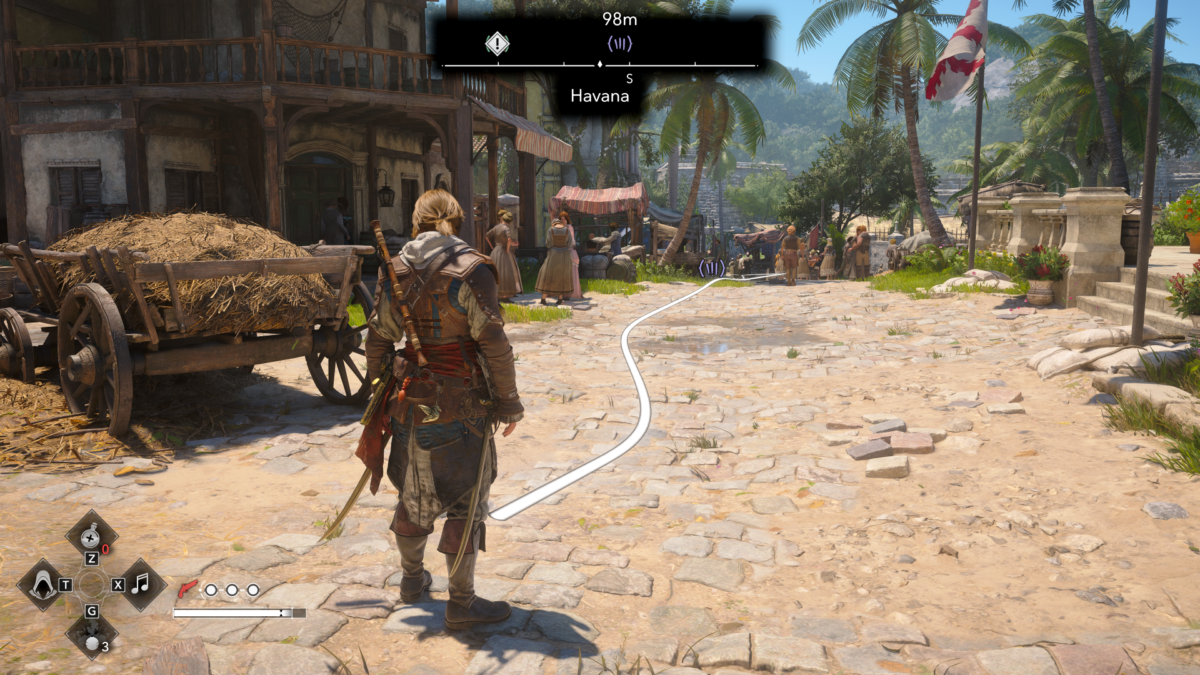
The only issue is that the Pathfinder’s line color isn’t always ideal. In bright days it’s hard to see it sometimes, especially if the line is on sand.
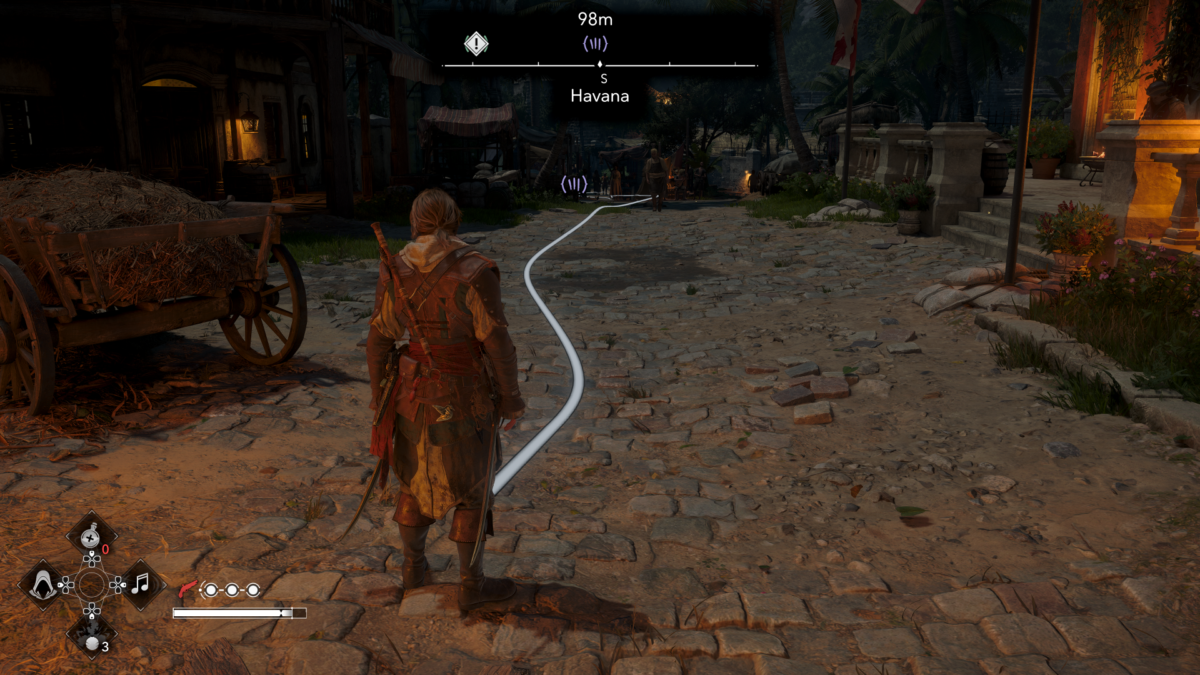
To increase visibility in these moments, you can enable the eagle vision or use the Passing Time feature to make it night, improving the contrast. To do it, you hold D-Pad right to pass the time and deal with any lack of contrast in certain parts. It is worth mentioning that you cannot pass the time while inside restricted areas, so my recommendation is to set a time of the day based on your experience. For example, if you like to do certain tasks at night, make sure you set it to nighttime before going to do those.
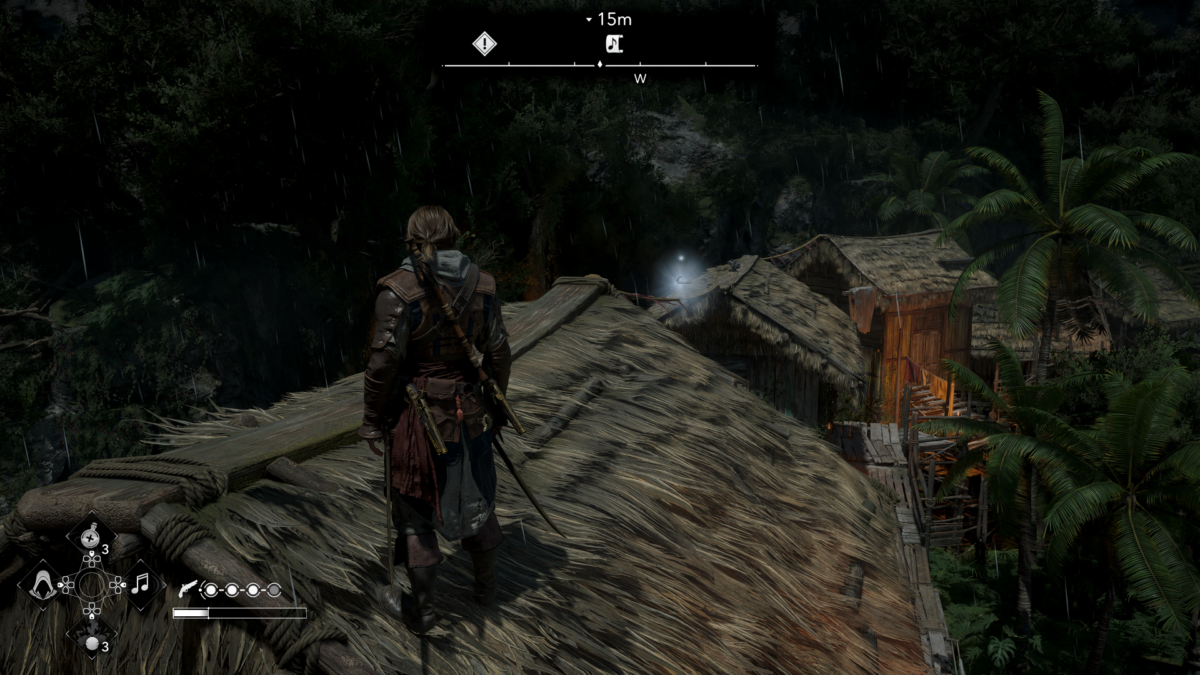
I’m able to collect every single item thanks to this pathfinder, but there is only one type of item that so far with 30 hours in this game that is basically impossible. I am referring to Collecting Sea Shanties. Those things move so fast and I lost track of them quickly. I wish there was something to assist with that, slowing it a little or something similar. I will try to platinum this game, but I believe I’ll need help with those.
Final Thoughts
Assassin’s Creed Black Flag is one of the most accessible open world games I’ve played, but it’s not perfect. The eagle vision, pathfinder and screen narration totally create a fair and memorable experience. You could say these features really put the wind in my sails. The eagle vision limitations like not having other colors for enemies we must follow, captains, key holders, highlight NPCs in need of help and less transparent loot was disappointing for me, but I wouldn’t be able to play without it as it is. Naval combat is by far the most frustrating part of the whole package. Not having aim assist or visual cue distinction when aiming at enemy ships or fort’s towers is a nightmare. But setting that part of the game to Forgiving difficulty and focusing on upgrading the ship makes it easier as you go. After getting used to every feature and mechanic, I ended up spending many hours completing areas, because the experience became effortless. You know a game is doing well when you don’t notice the time passing. I found myself many times saying, “I will play for one more hour”, only to find out 4 more hours had passed.
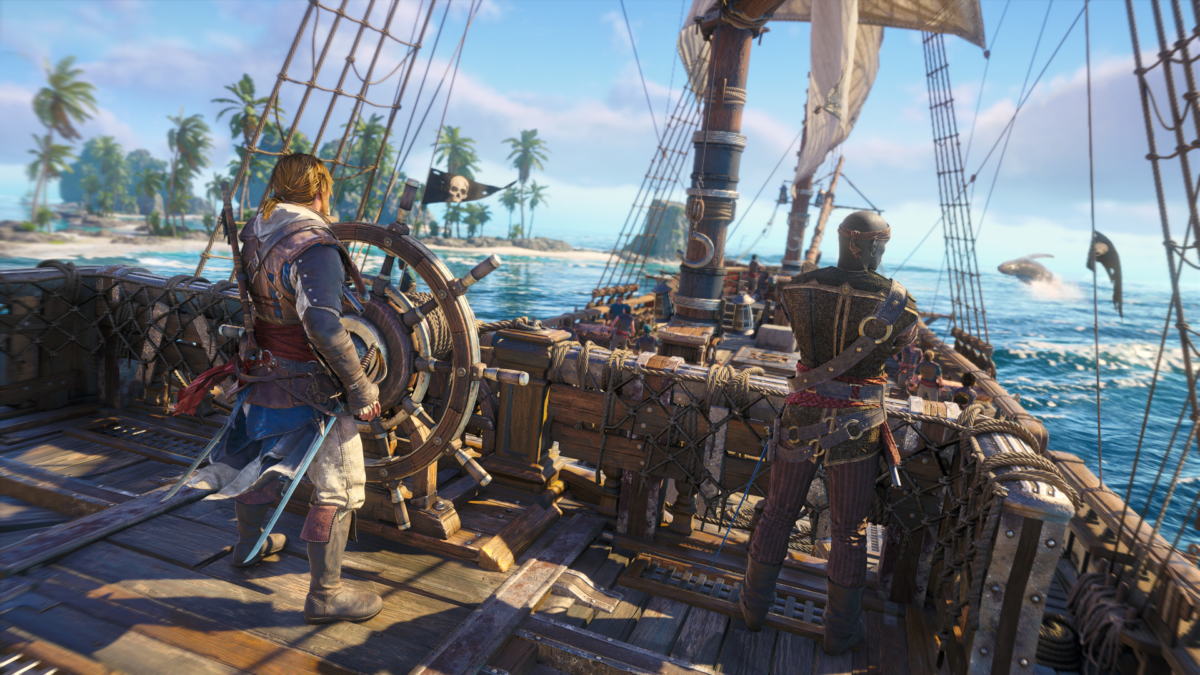
I want to highlight the screen narration that provides every bit of information you’ll need, including all menus, popups, tutorials, notifications, giving you total control of what is happening. I couldn’t wish for a better remake, especially when they removed the most annoying parts of the original, like missions failing constantly and the intense and totally inaccessible underwater sequences that now are totally fair thanks to the unlimited oxygen feature and many little details. It is the sum of all these factors that make this not only the most accessible Assassin’s Creed game, but Ubisoft’s greatest achievement in accessibility so far in my opinion. As a pirate, Edward searches for freedom and that is exactly the treasure I have found playing this game.
BEST FEATURES
- Screen Narration works across the entire game.
- Excellent overall contrast.
- Eagle Vision is extremely helpful.
- Individual difficulty customization.
- Visual navigation assistance and ship autopilot.
- Auto QTE’s .
- Map and its features.
- Audio cues and helpers.
- HUD Customization, background, text / icon size.
- Ability to deal with contrast issues by passing time manually.
- Tutorials.
NEEDS IMPROVEMENT
- Some limitations in Eagle Vision in comparison to the original game.
- Naval combat is harder due to lack of some visual aids.
- Screen Narration priotizes prompts in inconvenient moments.
- No visual color change or aim assist during Naval Combat.
Overall Score
9/10

Victor is a gamer with very low vision who is passionate about game accessibility. When he is not glued to the PC, he spends his days with his dog on long walks in green and beautiful places. Trying to improve every day in order to contribute as much as possible with the accessibility community. You can contact him on Twitter at @VictorAndre87